Instructions for Necessary Moderator Actions
This post is for explaining how to do all of the necessary moderator actions for the back-tagging, for those of you who are not already moderators.
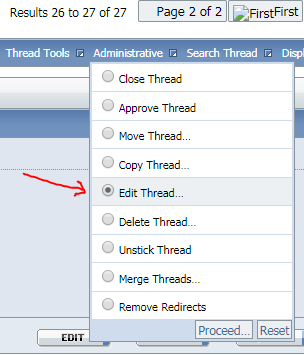
Changing a thread title: You used to be able to double click next to the thread title before going into the thread and edit it, but that is broken, so now you need to use the moderator menus. After you click into a thread, up at the top, there is a drop-down button called Administrative. Click that, and then select "Edit thread" and press proceed:
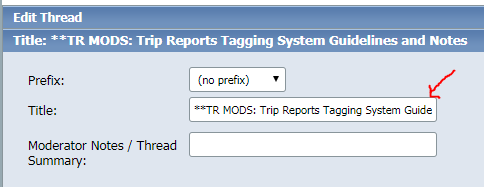
It will take you to a new screen, where the thread title is in a text field. Just edit it there, and either press enter or scroll down slightly and click "Save changes". There, you've changed the title:
Editing the first post of a thread to add tags: This one is super easy. Now that you have moderator permissions, you can edit anyone's post just like you could you own.
WARNING: If you're on the mobile site, editing a post deletes it, so please don't!
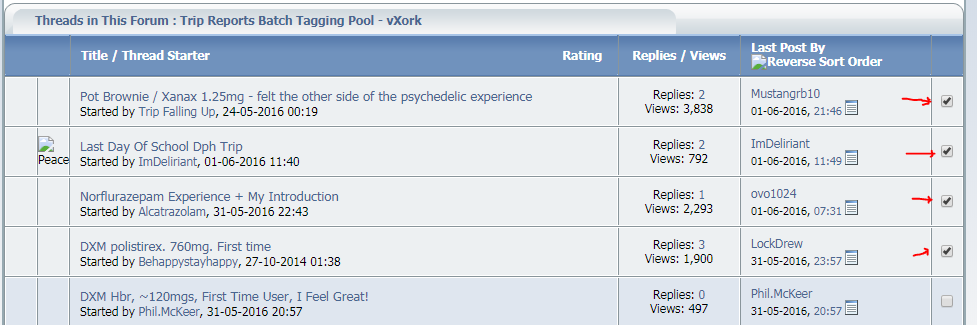
Moving threads back into the main Trip Reports forum after tagging: Once you've tagged some reports, you'll need to move them back into TR. To do that, first you select all the ones you want to move. You'll see off to the right for each thread now, there is a check box. Select all of the check boxes for the threads you want to move:
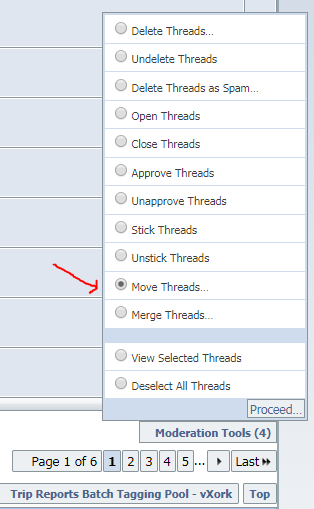
Then, scroll to the bottom of the page, and on the right side underneath all the threads, there is a drop-down button called "Moderator Tools". It will have the number of threads you have selected in parentheses. Click that, and then select Move Threads on the menu, and click Proceed:
This will bring you to a new page. There is a dropdown for Destination Forum, which is where you will move them to. It starts out on the current subforum you're in, but select Trip Reports from the dropdown. Then uncheck the "Yes" checkbox in the Redirect section. This will prevent a redirect from being created. Once you've done these 2 things, click "Move Threads" in the bottom right. It will then bring you back to the tagging pool subforum.
Moving junk threads into the trash: Sometimes there are threads that are unapproved (they should up in green) or deleted (they show up in red), or threads that SHOULD have been deleted (ie, garbage reports with no detail or just 1 or 2 lines, or also sometimes we have new moderator announcement threads and the like which we don't need to keep). Also sometimes threads are closed which usually means they weren't sufficient to be kept, but occasionally they got closed just because people were misbehaving in the thread, so check the closed ones before you throw them away because if the report is good, we want to keep it no matter what.
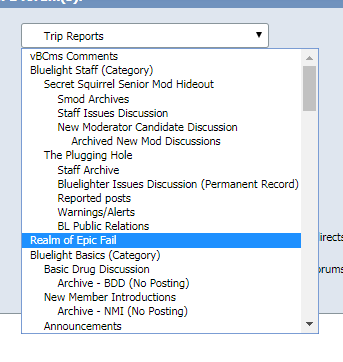
Anyway, to throw the bad threads in the trash, you select them just like in the above section's instructions, and use the Moderation Tools menu to Move Threads, but this time, instead of moving them to TR, move them to "Realm of Epic Fail". This is the general junk bin for the site that only moderators can see. it's near the top of the list of forums. Again, remember to uncheck the redirect checkbox so it doesn't clutter up the place with redirects:
Making a post in a modthread (like this one): If you post in a moderated thread, your post will be "unapproved" by default (it will show up with a green background). That means that other moderators won't see that the thread has had a new post, so we can end up missing that you posted. It's simple to fix that though, after you post it, select the post (each post will now have a check box in the upper right corner, similar to how threads have that now), and go to the bottom right of the page to Moderation Tools, and select "Approve Posts" and then click Proceed. it will turn your post the normal color and other mods will be able to tell you posted.








 Gonna start on 2016. While I wait for TLB to move them in, I'll start on some in the back of the devilsgospel pool (2012, right?)